
Connecting payment with Stripe
To accept payments via Stripe in pickAtime, follow the steps below.
Note: You must have a Stripe Business account to proceed.
Instructions for Setting Up Stripe:
- Log in to Stripe using your Business account.
- In the top-right corner, click Switch live account (not Sandbox).
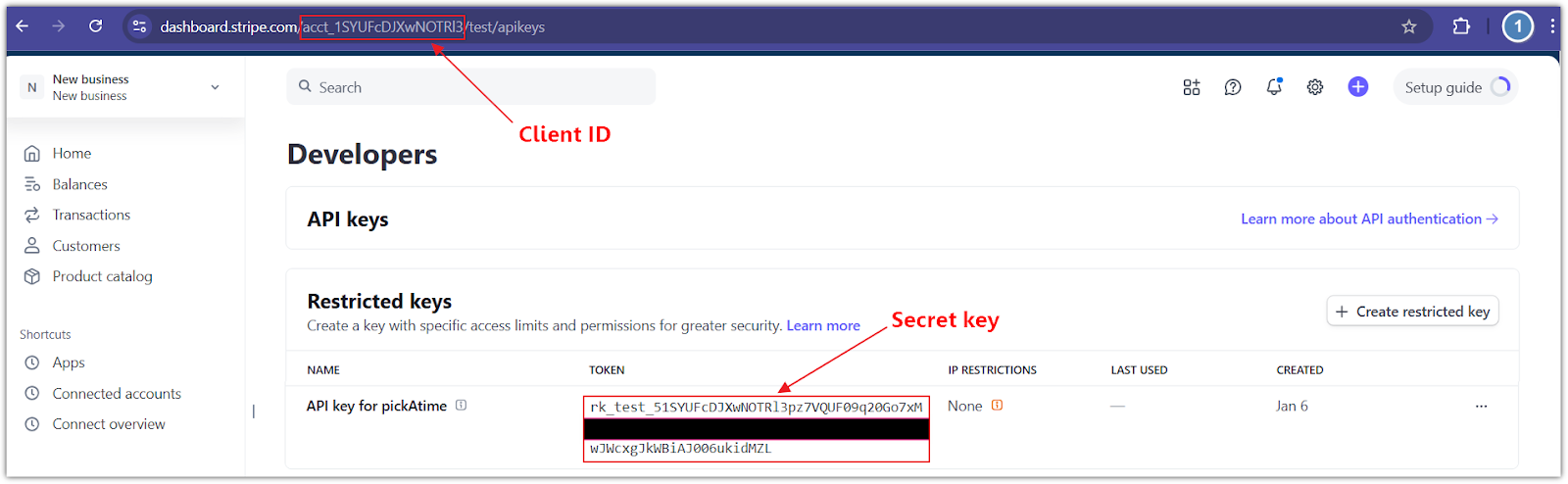
- In the bottom-left corner, click Developers > API keys.
- In the Restricted Keys section:
-
- Click the Create restricted key button.
- Select the Providing this key to another website option and click Continue.
- Enter the Name of the 3rd-party you're giving your API key to i.e., ‘pickAtime’.
- Provide a link to the 3rd party you're using: ‘https://pickatime.com/’.
- Leave the ‘Customize permissions for this key’ unchecked and click the Create restricted key button.
Configure pickAtime:
-
- In pickAtime, go to Admin UI / Settings / Credit Card Setup.
- From the drop-down menu, select Stripe.
- Paste the Client ID and Secret key into the corresponding fields.
- Click the "Check Credentials" button.
- If successful, your PayPal integration is now active.
You are now ready to begin accepting payments via Stripe through your pickAtime scheduling system.
To accept payments via PayPal in pickAtime, follow the steps below.
Note: You must have a PayPal Business or Business-PRO account to proceed.
Instructions for Setting Up PayPal (REST API):
- Log in to PayPal using your Business account.
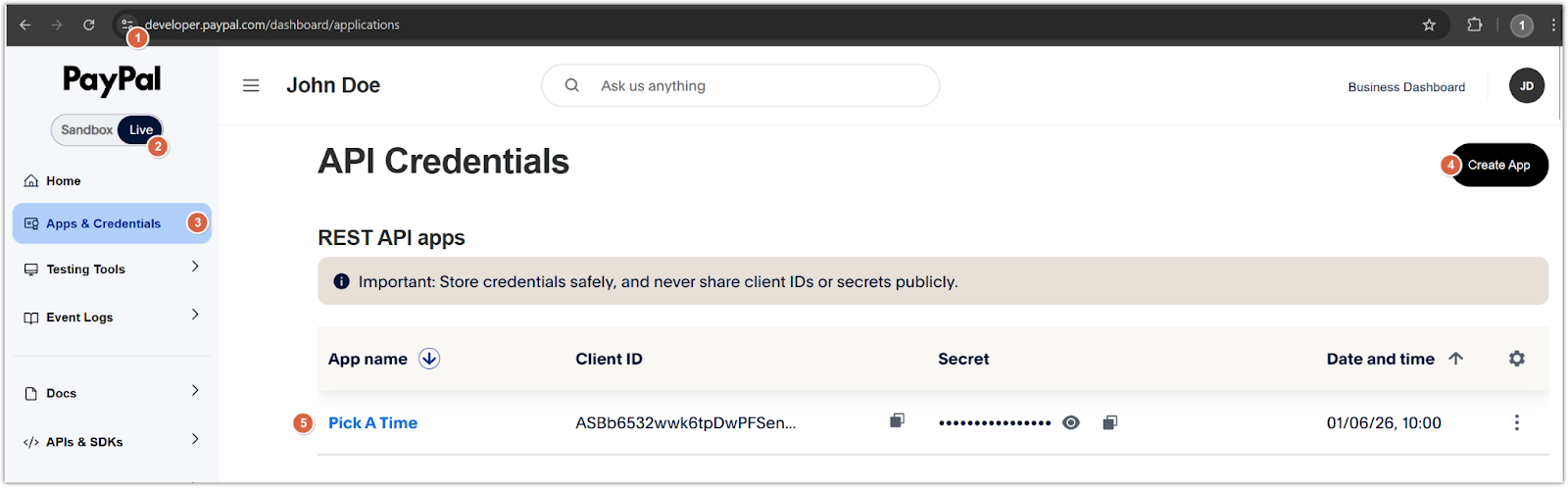
- Navigate to the PayPal Developer Dashboard.
- Switch to Live Mode (not Sandbox), and open the "Apps & Credentials" tab.
Create a new Merchant application:
-
- Click Create App.
- Give your application a name.
- Once created, you will see a Client ID and Secret.
- Copy both values.
Configure pickAtime:
-
- In pickAtime, go to Admin UI / Settings / Credit Card Setup.
- From the drop-down menu, select PayPal (REST API).
- Paste the Client ID and Secret into the corresponding fields.
- Click the "Check Credentials" button.
- If successful, your PayPal integration is now active.
You are now ready to begin accepting payments via PayPal through your pickAtime scheduling system.