
Sending Custom Emails
FromThe Appointments List page — not the main Appointments List page (not— the Appointments page) in the Admin UI,lets you can search byfor aand manage appointments by:
This will then bring upreturns a list of parents with appointments formatching thatyour date,search, dates,along with options to email, delete, confirm, or event.
On this page, you can email participants, delete, confirm, and recreate slots and appointments.
At
Sending Emails from the Appointments List
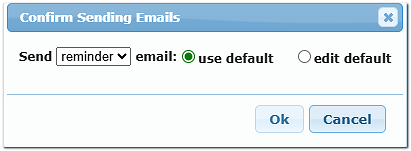
This will let you send a Reminder email or a Custom email to your group of parents. You can usesend using the currentexisting emailtemplate template,as-is, or you can customize it as needed. The template for boththis emailssend.
locatedontemplatestheare managed underSettings /Settings/ Notification Setup.page.