
Zoom Admin Managed App
PickAtime offers the option to use Zoom within events. There are two ways to use Zoom.
In the first option, the teacher would use their own account to create a single Zoom URL, which would be placed within the Room column in the Appointments Tab within Event Management.
Option 1: The Zoom Integration
The second option is the integration with Zoom itself. With the Zoom integration, teachers can offer individual Zoom online meetings. The Zoom links are automatically generated for customers and parents. There is no additional charge from pickAtime for this integration.
Please note: When you activate the integration, it will not display the Zoom link information placed in the Virtual/Room column.
To use the Zoom Integration with pickAtime, you will use the Admin Managed application.
1. Go to pickatime.com and log in. Ensure that you have all of your teachers imported, and go to the Admin UI tool, Global Setup / Business page, Integration Options section
2. In the Zoom Integration section, click the Connect and Map Contacts button.

3. Permit the app (if you are not logged into Zoom, you may be asked to log in) for meetings (first icon listed).
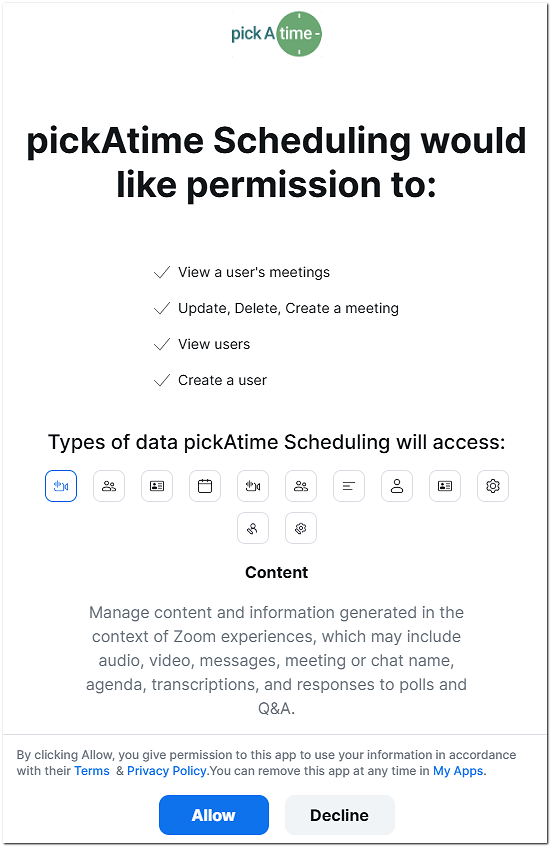
4. The app is now connected.

5. Once the mapping is complete, a pop-up dialog box will appear giving you the details.
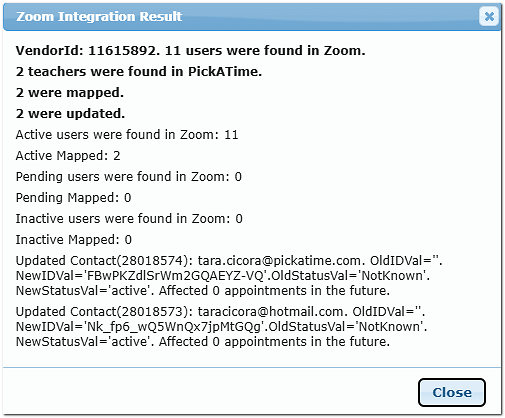
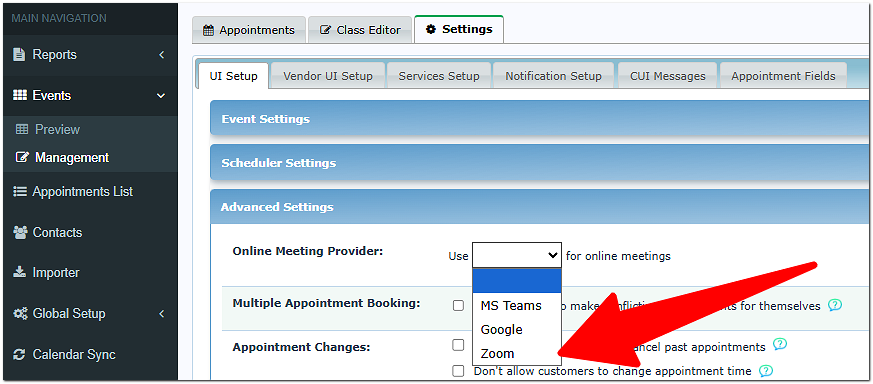
This will activate the integration on an account level. To activate the Zoom integration for an individual event, go to Events Management / Settings / UI Setup / Advanced Settings / Online Meeting Provider and then select Zoom.
Online Meetings Page Guide
This page helps Admins monitor the status of Zoom Meet link generation and teacher calendar syncs. This page will help you to ensure every virtual appointment is properly linked.
Sections on the Online Meeting Page
1. Online Meeting Sync
- Shows appointments that are still generating Zoom links.
- Note: Link generation may take up to 40 minutes.
- The links will disappear from this section once the link is created and detected.
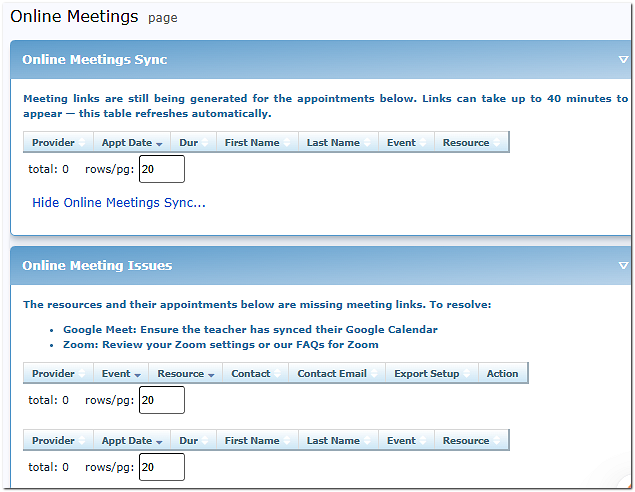
2. Online Meeting Issues
- List teachers/resources that do not have meeting URLs.
- The system will give the relevant meeting information while also offering action steps
3. Calendar Link Setup Status
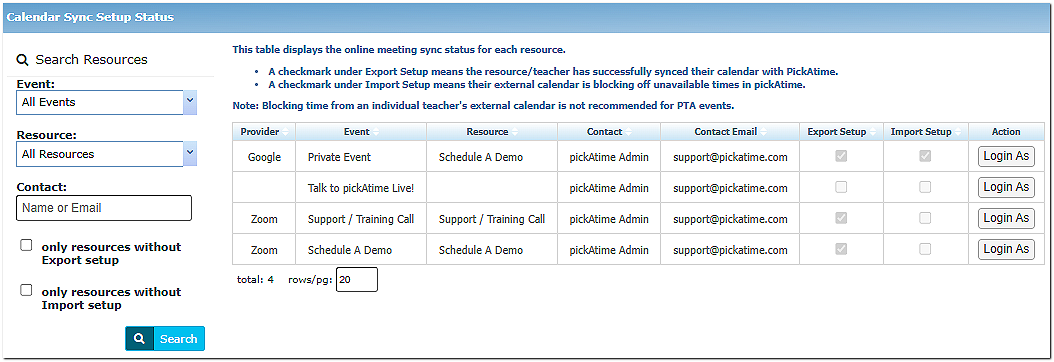
This section will show you if the teacher has mapped their Zoom account or not, and offers you the option to log in as the teacher directly from this page.
Export Setup
- Checked = The teacher's pickAtime account has been mapped to their Zoom account.
- Missing check = The teacher's pickAtime account has not been mapped to their Zoom account.
Import Setup - Google only
- Checked if the teacher opted to block off times in pickAtime from their Calendar.
- Not recommended for teachers.
Important Admin Tips
- Teachers must have a Resource assigned to their contact records and time slots with the appointment type virtual created to appear on this page.
- If links don’t generate after 40 minutes, confirm:
- The teacher has completed sync (Export Setup is checked).
- The appointment was created as Virtual or Virtual/In-Person.
Still No Link?
It might be due to:
- The time zone was recently changed
- There’s an error in the system
Contact: support@pickatime.com
{{@244#bkmrk-google-zoom-teams-go}}
{{@244#bkmrk-step-2%3A-adding-the-l}}
{{@244#bkmrk-method-2%3A-manual-set}}
{{@244#bkmrk-important}}