
Microsoft Outlook Calendar Sync
Setup Steps
- Sync Calendar with Outlook. Teachers manually sync via the Calendar Sync page in the pickAtime Admin UI. To sync your MS Calendar, do the following:
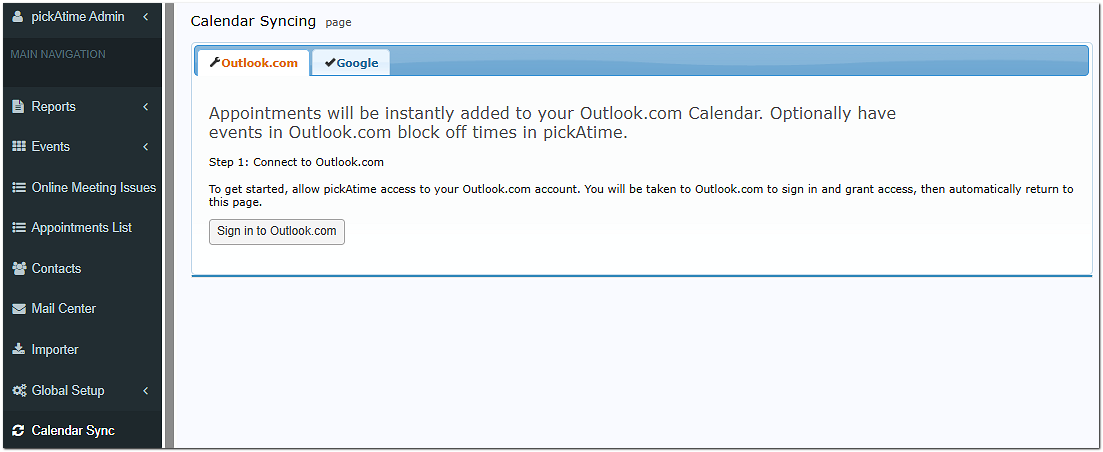
- Go to the Calendar Sync and click the ‘Sign in to Outlook.com’ button.
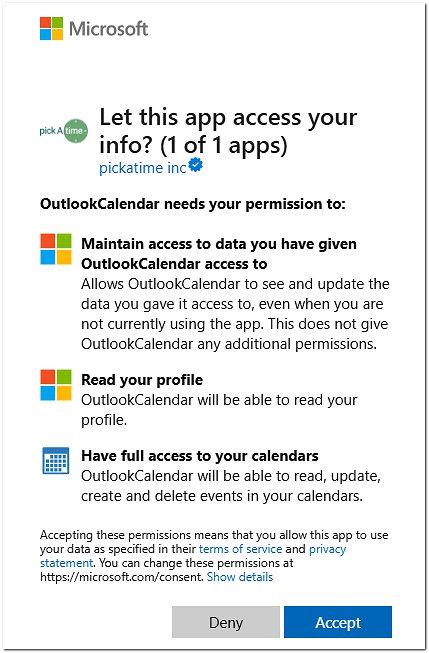
- Accept the permissions for Outlook
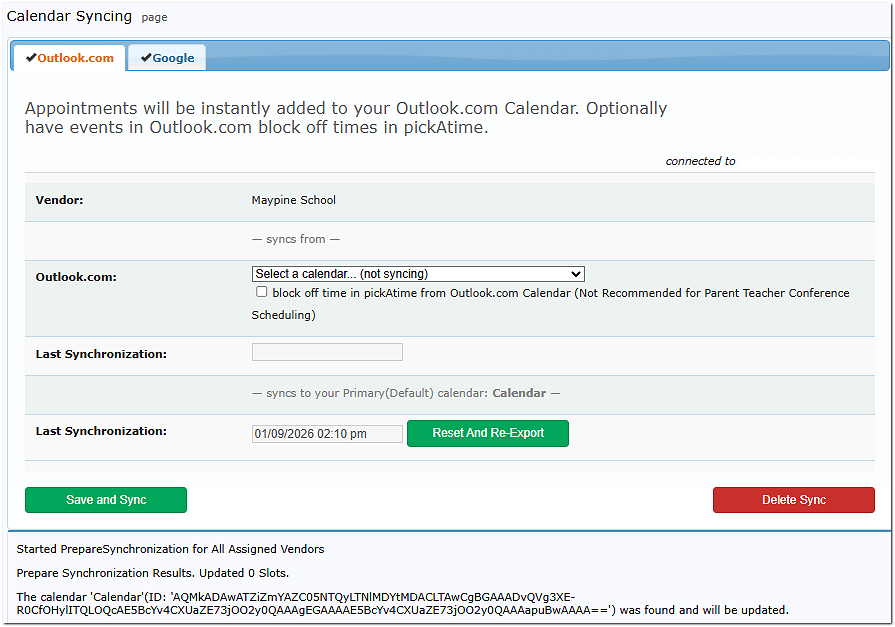
- Select your calendar and click
Frequently Asked Questions
Here are some of the more common FAQ’s:
Q. What is the Reset and Re-Export Button?
A. The "Reset and Re-export" option just means that all appointments will be re-exported to the user's primary calendar. Usually, pickAtime exports new appointments and updates calendar events for appointments that have been changed since the "Last Synchronization" date.
Q. What is the Save and Sync Button?
A. The "Save and sync" option performs two actions: importing events from the selected calendar and exporting appointments to the primary calendar. If the "block off time in pickAtime from Google Calendar" option is enabled, then pickAtime will automatically import events from the selected calendar every 15 minutes.
Q. Why does my appointment time in Outlook Calendar look different than my confirmation email?
This usually happens due to a time zone mismatch.
If an event is created in a different time zone than your local setting, calendar providers like Google or Outlook will automatically adjust the time to match your location. For example, an appointment scheduled for 9:00 AM Central Time will appear as 10:00 AM if your calendar is set to Eastern Time.
If you notice that all appointments for an event are off by an hour, you, as an admin, can fix this by updating the event’s time zone:
-
Log in to the Admin UI
-
Go to Events > Preview
-
Locate your event and check the Time Zone column
-
Select the correct local time zone (e.g., Eastern Time) from the dropdown
To update existing appointments to the correct time zone, do the following in the Admin UI:
Once the time zone is set, the reminder emails (which include a calendar attachment) will reflect the updated time. Calendar entries will automatically sync and display the correct time for users.