
Turn it On and Test the Scheduler

  1. From the

    This

    Admindoc UIhas onsubstantial duplication — Part 1 (establishing the SSO connection) is word-for-word identical between the "new schools" and "current schools" sections. Only Part 2 genuinely differs (creating a new resource board link vs. updating an existing one). Here's a restructured version that consolidates the shared content and clearly separates only what's actually different.

    Turn It On and Test the Scheduler

    1. From Events Preview 
    page,, select your event and click Go To Event. Click on the  button to open the Event Management page. Select theSettings Settings/ tab and then the UI Setup tab.. ToSet turn on the online scheduler so parents can use the website and schedule appointments, modify the "Open scheduler to customers on ”on" and the "Close scheduler to customers on  Any days that you wanton" to makedefine availablethe forwindow during which parents tocan schedulebook appointments should be within the start and end date specified.appointments.

    To allow yourself (and other Administrators) access to the scheduler whenyourself itwhile isit's closed to your parents, check the box "allowAllow Admins access to the CUI at all timestimes.".


    Create the SSO - new schools

    PickAtime can be used to create a direct link (via Single Sign On)directly from the BlackboardBlackbaud Resource Board to theyour Parent Parent-Teacher Conference event forvia yourSingle parents.Sign-On. (For quickhelp access on how to buildbuilding a Resource Board, visitsee Blackbaud’Blackbaud's Helpfile on Resource Board help file. This page is for new schools that do not currently have a pickAtime / Blackbaud integration and need to create their SSO link. If you are a current pickAtime school that has been using the pickAtime / Blackbaud integration and needs to change to the SKY API, please click here)

    You📺 can also watchWatch our videovideo: on Setting Up Your School's Single Sign On.Sign-On

    Choose your path:

      New schools (no existing pickAtime/Blackbaud integration) — follow Part 1 and Part 2A below. Current schools (already integrated, updating your SSO link) — follow Part 1 and Part 2B below.

      Part 1: Establish the SingleSSO SignConnection On (SSO) betweenBetween Blackbaud and pickAtime

      (This steppart is identical whether you're setting up SSO for the first time or updating an existing connection.)

      This requires you to copycopying a Redirect URL from pickatimepickAtime tointo your Blackbaud account. You willBlackbaud, then copycopying youra Secret Key from Blackbaud toback yourinto pickatimepickAtime. account. You willYou'll need to logbe inlogged tointo both accounts to copy and copy/paste between them. 

      1. First,Log loginto in to your pickAtime account andpickAtime, go to Global Setup / Business, select/ Show Advanced optionsOptions, thenand under the Single Sign On Options, select Blackbaud as your SSO Provider.
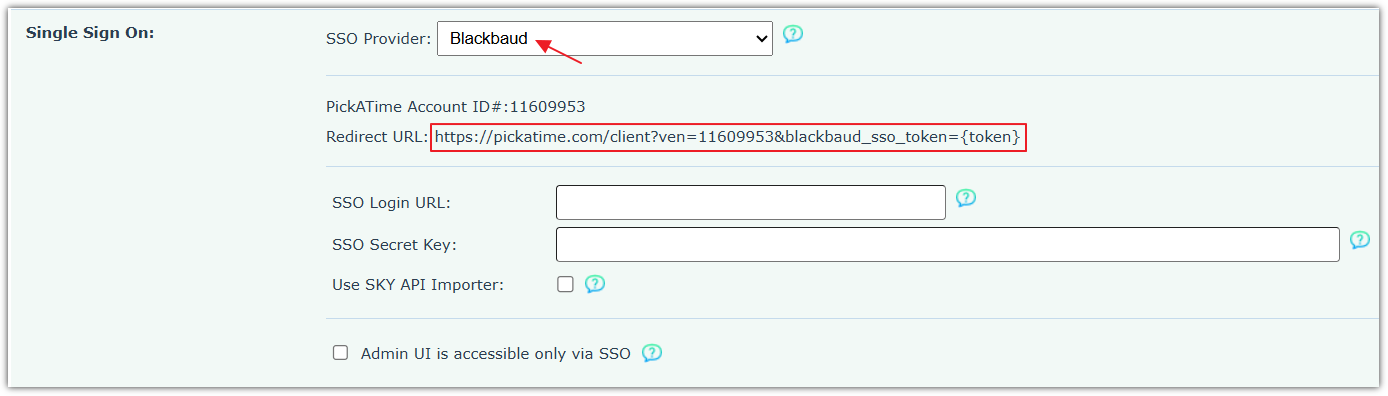
      YouCopy willthe see a Redirect URL listed.shown Copy this redirect URL, as you willyou'll need toit pastein thisstep to4. yourIn Blackbaud settings in the following steps.  On your Blackbaud account, (as a platformPlatform manager,Manager), navigatego to Core,Core Security,/ Security / Authentication settings,Settings / SSO Settings. SelectClick Add newNew. Enter a Name for your newSSO SSO. Whensaving youwill clickauto-generate Save,a the Slug is generated based on thethis name you enter.name. EnterPaste your Redirect URL (what you had previously copied from your pickatime account in step 1).2)  This isinto the externalappropriate URLfield. where
      the user will be sent with a token from a valid session from Blackbaud Education Management.

      ⚠️ Be sure to include the

      {token} placeholderplaceholder, (includewith the curly braces)braces. ToCheck allow impersonation, select Allow impersonationImpersonation.  Click Save your settings. . Select to editEdit the item you just created.created, then Selectselect and copy the Secret Key. from
      the

      💡 dialogTip: box. 

      Tip: YourThe Secret Key is 88 characters - it is longer than the field,visible so be sure to select the entire key.field. Triple-click on the text field to select the wholeentire string. Return to your pickatime account, and againpickAtime, go to Global Setup / Business page,/ select Show Advanced Options, and under the Single Sign On Options, paste the Blackbaud Secret Key tointo the SSO Secret Key box.field.

      YouYou've havenow successfully made the connection betweenconnected Blackbaud and pickAtime. YouNext, willyou'll now want to ensure that your school hasneed a Blackbaud Resource Board tile that points to pickatime.pickAtime — see Part 2 below.

      Part 2:2A: Add the SSO linkLink to a resourceResource board

      Board

      (New Schools)

        From SSO Settings, copy the URL next to the SSO item you just created. You'll need this in an upcoming step.

        As a platformPlatform managerManager or contentContent editor,Editor, navigatego to Core,Core Content,/ Content / Additional contentContent types,Types Links.

        /
          Select Add new categoryLinks.  NameClick yourAdd categoryNew Category, and name it. Click Save & addAdd linkLink.  Enter thea Title.  In the URL field, combine your school's app URL (i.e., https://SCHOOLNAME.myschoolapp.com) with the URLSSO segment from the first step (i.e.,/app/sso/auth/test-sso),1, replacing the lastslug: part, which is the slug. https://SCHOOLNAME.myschoolapp.com/app/sso/auth/SLUG  Click Save. Go to Core,Core Content,/ andContent / Resource boardsBoards. Next to View boardsBoards, choose the appropriaterelevant rolerole/security group (securitye.g., group) such as parent.Parent). SelectClick Add post,Post. Enter thea Title, Description, and add a Cover photoPhoto.  For Post Cover, select Direct Link. Select the Post cover, go to select the Direct link. Select Category and find the category you created in the previous steps.earlier. Select your Link and choose your(the SSO link from step 6). Click Save. 

          CreatePart the2B: SSOUpdate - current schools

          PickAtime can be used to create a direct link (via Single Sign On) from the BlackboardYour Resource Board to(Current the Parent Teacher Conference event for your parents. For quick access on how to build a Resource Board, visit Blackbaud’s Helpfile on Resource Board. This page is for schools that already have a pickAtime / Blackbaud integration and simply needs to update their SSO link.

           If you are a new school that does not currently have a pickAtime / Blackbaud integration and needs to create their SSO link, please click here.

          Watch our video on Setting Up Your School's Single Sign-On.

          To configure the Single Sign On (SSO) for your school account, please do the following:

          Part 1: Establish the Single Sign On (SSO) between Blackbaud and pickAtime

          This step requires you to copy a Redirect URL from pickatime to your Blackbaud account. You will then copy your Secret Key from Blackbaud to your pickatime account. You will need to log in to both accounts to copy and paste between them. 

          Schools)
          1. First,From log into your pickAtime account and go to Global Setup / Business, select show Advanced options, then under the Single Sign On Options, select Blackbaud as your SSO Provider. You will see a Redirect URL listed. Copy this redirect URL, as you will need to paste this into your Blackbaud settings in the following steps. 
          On your Blackbaud account, as a platform manager, navigate to Core, Security, Authentication settings, SSO Settings Select Add new. Enter a Name for your new SSO. When you save, the Slug is generated based on the name you enter. Enter your Redirect URL (what you had previously copied from your pickatime account in step 1).  This is the external URL where the user will be sent with a token from a valid session from Blackbaud Education Management. Be sure to include the {token} placeholder (include the curly braces). To allow impersonation, select Allow impersonation Save your settings.  Select to edit the item you just created.  Select and copy the Secret Key from the dialog box. Tip: Your Secret Key is 88 characters - it is longer than the field, so be sure to select the entire key. Triple-click on the text field to select the whole string. Return to your pickatime account, and again go to Global Setup / Business page, select show Advanced Options, and under the Single Sign On Options, paste the Blackbaud Secret Key to the SSO Secret Key box.

          You have successfully made the connection between Blackbaud and pickAtime. You will now want to ensure that your school has a Blackbaud Resource Board tile that points to pickatime. 

          Part 2: Update your Resource Board
            From SSO Settings, copy the URL next to the SSO item you just created. You'll need this in an upcoming step.  As a platformPlatform managerManager or contentContent editor,Editor, navigatego to Core,Core Content,/ Content / Additional contentContent types,Types / Links. Locate your current pickatime link and click onyour it.existing pickAtime link. Click on the edit icon,icon, locate the link destinationdestination, and then click Change. Select the Link / URL option. InIn the URL field, combine your school's app URL (i.e., https://SCHOOLNAME.myschoolapp.com) with the URLSSO segment from the first step (i.e.,/app/sso/auth/test-sso),1, replacing the lastslug: part, which is the slug. https://SCHOOLNAME.myschoolapp.com/com/app/sso/auth/SLUG Click Save.
            Test the

            Testing Your SSO URL

            1. To allow impersonation, navigateGo to Security,Security / Authentication settings,Settings / SSO settingsSettings.
            , Editand theedit your SSO link settings to allowconfirm impersonation.Allow Impersonation is enabled. Under your profile menu, select the Impersonate User. option. Blackbaud will allow you to findFind a user to impersonate. Ensure(Make thatsure this user isalso exists in pickAtime as well (note that theBlackbaud User IDs indetermine Blackbaudthe tell pickAtime whatuser's role thatin User has).pickAtime.) OnceWhile you are impersonating a user,impersonating, go to theirthat user's Resource Board.Board. Click the pickAtime link to accessconfirm it opens the event.event correctly.

            Notes:


            Notes

            • The relevant boardsboard(s) must be selected to seefor the SSO link post into appear under the Resources tab.
            • Note that whenWhen manually adding new users to pickAtime, pickAtimeyou'll requiresneed Firsttheir / First/Last Name,Name, Email,Email, and thetheir user'sTeacher teacherID or parentParent ID.ID.
            • For additional informationmore on SSO within the Blackbaud system,SSO, pleasesee reviewBlackbaud's the SSO Tutorial from Blackbaud..