Administrator Access
From the Contacts tab, you can search for a contact, select their name, and adjust the "Admin Level" pull down to allow them to log in to the Admin UI and see reports.{{@31}}
To add a new contact, i.e., select the green Add button. For an Administrator, select Admin... and fill in the Contact information for the Admin.
Select the Admin Level pull-down to set the Contact's access level.
For the administrative categories Appointment Viewer, Appointment Maker, and Resource Administrator, be sure to specify the resources the contact should have access to. This is set in the Vendor Access tab -> Resource Access block.
For the administrative category Event Administrator, make sure to set the event that the contact should have access to. This is set in the Vendor Access tab -> Event Access block.
All of these settings allow access to the reports.
This new contact will be prompted to create a password the first time they log in.
To Update multiple Teachers
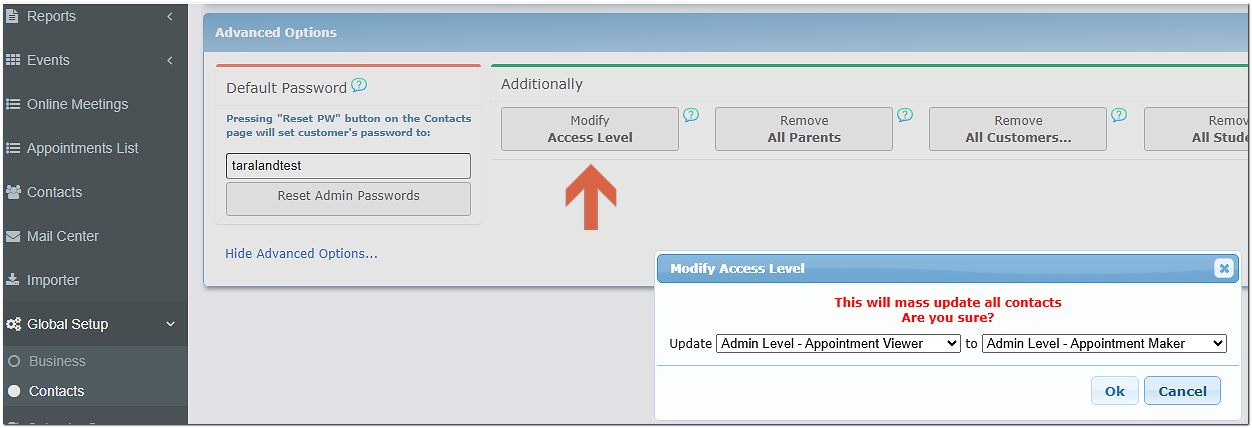
To update groups of Teachers /Admins to higher (or lower) levels, go to Global Setup/Contacts and under Advanced Options / Additionally select the Modify Admin Level button.