
Veracross - Setting Up the Integration
This guide explains how to connect Veracross with pickAtime. Please note that the setup process is completed inside the Veracross Axiom backend.
Before You Begin
- You must have one of the following Veracross roles or permissions:
-
-
System Administrator
-
IT Administrator
-
API Administrator
-
Integration Manager
-
If you do not see the integration settings described below, contact your school’s Veracross administrator or IT department.
-
2. Contact pickAtime so that the integration can be activated on the pickAtime side.
Step 1: Confirm API Permissions
Before creating the integration, your Veracross account must have the OAuth_App_Admin security role assigned.
Important: Even standard System Administrator accounts cannot create API integrations unless this permission is specifically enabled.
Without this role:
-
Integration setup buttons may be hidden
-
Fields may appear read-only
-
OAuth applications may not be accessible
If needed, ask your Veracross administrator to assign this permission.
Step 2: Log Into Veracross Axiom
-
Log into your school’s Veracross Axiom dashboard using your administrator credentials.
-
Open the Identity & Access Management section.
-
Under the Configuration area, select OAuth Applications
This page manages third-party integrations.
Step 3: Create a New OAuth Application
-
Select Add Record or Add OAuth Application
-
Fill out the basic application information.
Recommended settings:
Name
Enter a recognizable name such as:
-
pickAtime Integration
-
pickAtime Scheduling Sync
Internal Notes
Add a short description for your staff. For example: “Integration used for conference scheduling and roster imports.”
Contact Email
Enter the support or technical contact email address.
Step 4: Configure API Permissions (Scopes)
Once the application is created:
-
Open the Scopes tab on the left-hand side.
-
Enable the permissions required for your integration.
Required Scopes for Imports
Enable the following permissions:
-
staff_faculty:list
-
staff_faculty:read
-
parents:list
-
parents:read
-
students:list
-
students:read
-
relationships:list
-
relationships:read
-
academics.config.grading_periods:list
-
academics.config.grading_periods:read
-
academics.classes:list
-
academics.classes:read
-
academics.enrollments:list
-
academics.enrollments:read
Required Scope for Single Sign-On (SSO)
If using Single Sign-On, also enable:
-
sso
After selecting the required permissions, click Save or Update. Your Veracross integration application is now created.
Step 5: Copy Client ID and Client Secret
Return to the General tab of the OAuth application.
You will see two important credentials:
Client ID - A unique identifier for the integration.
Client Secret - A secure password-like key used to connect systems.
Copy both values.
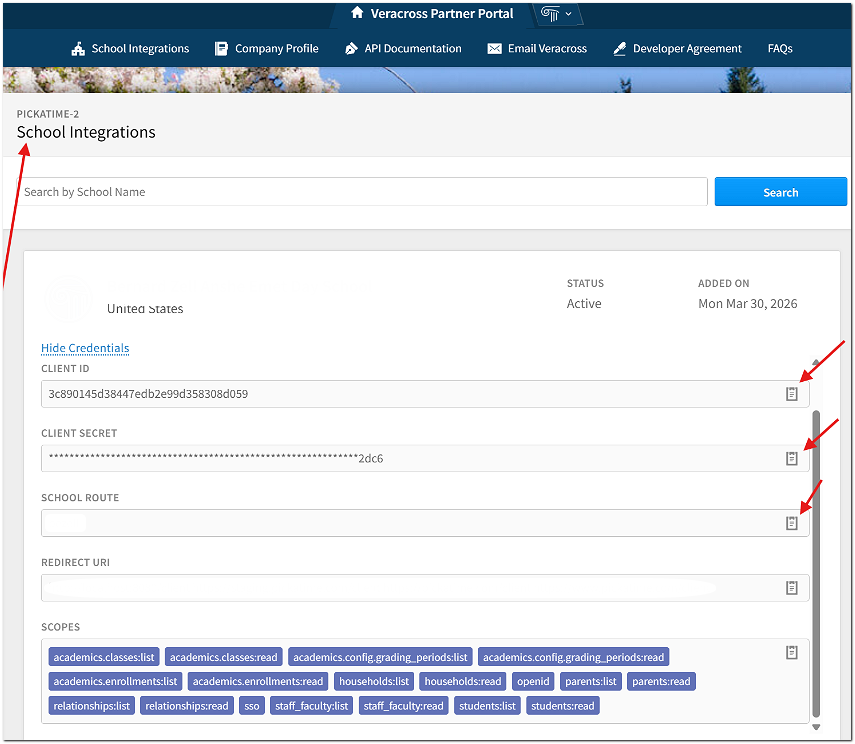
Important: The Client Secret may only be fully visible once immediately after creation. If you leave or refresh the page, it may become hidden for security reasons.
Step 6: Add Credentials to pickAtime
-
Log in to your pickAtime administrator account.
-
Navigate to Global Setup / Business/Integration Options/Veracross Integration.
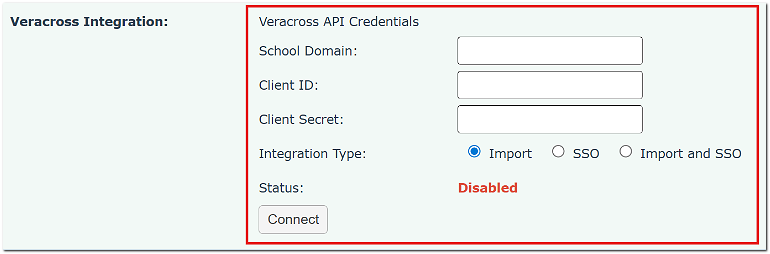
Enter:
-
School Domain
-
Client ID
-
Client Secret
-
Integration Type
Then click Connect
Step 7: Add Redirect URLs for SSO (If Using)
If your school is using Veracross Single Sign-On (SSO), add the following redirect URLs to the allowed redirect list inside Veracross:
If these URLs are missing, users may receive an authentication or redirect error when attempting to log into pickAtime through Veracross.
No query parameters (like ?ven=XXXXXX or school/account names) should be added to the Veracross redirect list. The schools should enter the base URLs exactly as written:
Step 8: Run Your First Sync
Once connected, create an event and run the importer inside pickAtime.
Using SSO?
Click here to view the instructions for creating a Portal Tile for your parents and students.
Recommended Best Practices
Before opening scheduling to families:
-
Run a test import
-
Verify that the information has been added to pickAtime correctly
-
Test the scheduler as a parent
Need Help?
If you need assistance:
-
Contact your Veracross administrator
-
Reach out to your school’s IT department
-
Contact pickAtime Support