
Events Preview Page
The Events Preview page allowsis where you to create, delete, and edit certaincore event details.
At the top of the page is the Search Events bar.
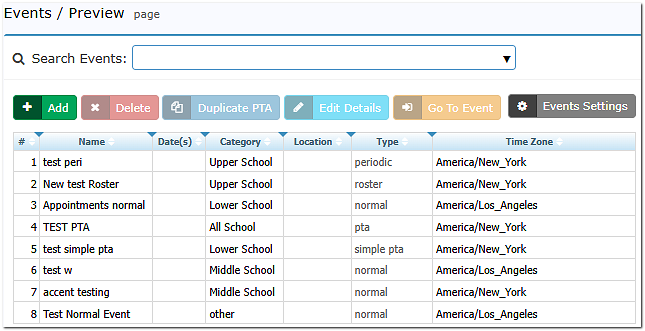
Buttons
ButtonsAdd
Description
Add
This button takes you toOpens a form to create a new event.
Delete
Thisthe button allows you to delete yourselected event
Duplicate PTA
This button is(Enabled only activatedon whenrequest.) you request it. This option will createCreates a copy of youran oldexisting eventevent, andincluding willits contain the same class and enrollment data as— thebut copiednot event.time Youslots. only want to use this option if your class and enrollment data are the same -Best for example,events ifwith youunchanging haverosters (e.g., full-year classes. It will not duplicate time slot information.
Edit Details
Thisa button will take youpage to aedit pageparticipant-facing where you can editevent summary event details for your participants.
Go to Event
This button will take you to Event Management
Event Settings
Thisadvanced buttonevent-level will take you to an additional page where you can edit additional settings.
Add
New Event
To create
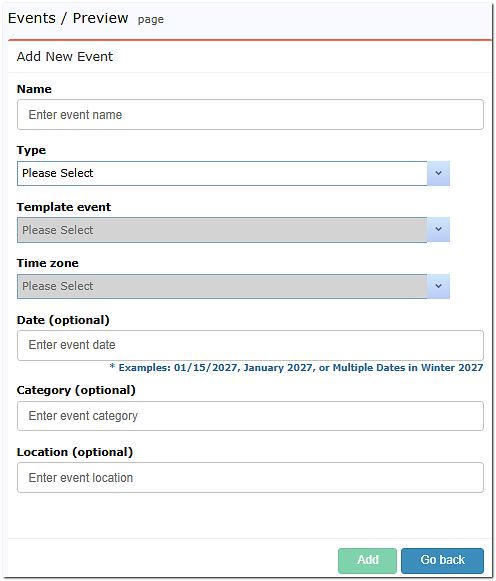
Adding a New Event, do the following:
Event
AddEnteryouran Event Name.- Select
thean Event Type:“PTA,”PTA,“Simple,PTA,”PTA“Normal,”Normal, or“Roster”Roster. - Select
thean EventTemplate.TemplatePickAtime has templates available, but you can— use one of pickAtime's built-in templates, or base it on anolderexistingeventevent.
Time zone.If you use an
olderexisting event asayour template, the new event willtakeinheritthethat event's time zoneofautomatically.the
All remaining fields are optional.
Edit Details
OnThis thispage page,lets you can includeadd written details, links, or images for yourparticipants participants.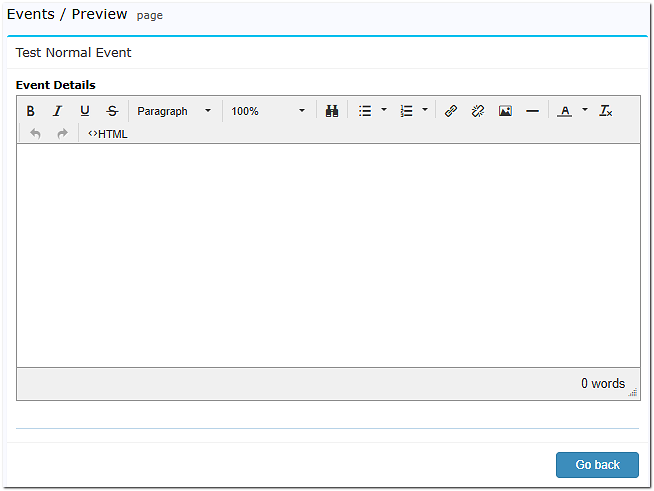
The Event Settings
The Event Settings page holds morecontains advanced featuresconfiguration options for events on your account.events.
General Settings
Events Settings
Propagator Mode
Thishow allows you to propagatebroadly your changes to:apply — to only the current event;event, all events of the same type;type, or all events of the same category and type.
Events Sorting
Controls display order of events (see "Sort events by the following order" below)Events Page Title
Events Page’s Title is set to "Events" by default, but you can customize it. For example,if you have events for multiple schools or clinics on the vendor account, you can changeCustomizes the title of your Events page (default: "Events") — e.g., rename to Schools"Schools" or Clinics"Clinics" accordingly.
Default List
Choose tobetween displayshowing all events at onceonce, or listshowing "featured" events first (the event matching a parent's enrolled child) with a search bar for others. When the "featured" events option is selected, the event in which a parent's child is currently enrolled is displayed.
Sort eventsEvents byBy the followingFollowing order Order
Select the display order for events. Drag fields to set yourthe preferreddisplay hierarchy.
Events Table Columns
Add, delete,remove, or reorder unique columns and customize their appearanceshown on the Events/Events Preview page.
Allowed timezonesTimezones
Allows you to toggleToggle between national and international time zones.
Manage Categories for Events
Use
Category Sort
These features allow you to group events byinto categorycategories to— improve navigation for participants, especiallyuseful for accounts with a high eventvolume volumes.of events, to help participants navigate more easily.
Categories Page Title
Set a customCustom name for the Categories landing page.
Allow customer to select category first
Forcesparticipants anto initialchoose a category selectionbefore beforeseeing specific events are displayed.
Category selector not displayed
AllowsLets you to createbuild a direct URL to a specific category (based on the category you entered in the Category column foron your event(s).
Events Categories
A management table to update, delete, or reorder categories across all events simultaneously.at Itonce — affects appearancehow categories appear in the CUI (Client User Interface).