Microsoft Teams
Setting up and using Microsoft Teams
There are two ways to use MS Teams with pickAtime
Method 1: Enable MS Teams Integration (Auto-Generated Unique Links)
Each appointment receives a unique MS Teams link that is automatically generated and sent to both parent and teacher. Please ensure that Microsoft Teams is enabled for your organization's users; otherwise, virtual meetings won't be created.
- Have your teachers sync their Outlook Calendar using the instructions here.
- Enable MS Teams
- Go to Settings / Online Scheduler Settings/ Advanced Settings.
- Under Online Meeting Provider, select MS Teams.
- Use Virtual Appointment Types
- MS Teams links are only generated for appointments of type Virtual or Virtual/In-Person.
- Email Configuration
- Go to Settings / Notification Setup.
- Check the Send confirmation email option.
- Enable “Insert Printable Schedule as Body” to include the $(ROOM) macro (MS Teams link).
- Optionally, you may need to change the virtual event column header to say MS Teams.
- Customize Calendar Notifications
- To edit the details of the notification that the parent/participant receives in their calendar, go to the Settings / Notification Setup page. Select Calendar Event Notification, and then you can edit the Title (this is the header), the Description (the message in the calendar), and the Location*.
- To edit the details of the notification that the teacher/provider receives in their calendar, go to the Settings / Notification Setup page. Select the Resource Notification Email, and then you can edit the Subject and the Confirmation Email Body.
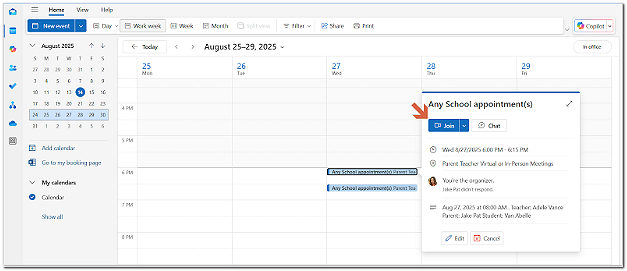
Notes
You need to have a Microsoft Business Account and an MS Teams License for Teachers
- Teachers must have a Microsoft Business account and an active MS Teams license within their organization.
- To verify and activate the MS Teams license:
- Sign in to https://admin.microsoft.com/.
- On the homepage, go to the Users section and select the teacher’s account.
- Click More actions and choose Manage product licenses.
- In the Licenses and Apps window, ensure the MS Teams app is checked under Apps.
- If MS Teams is unchecked, activate it and click Save Changes.
Additional Notes
- Parents must log in to MS Teams to join meetings.
- For updating time zones, contact support@pickatime.com to request a 'Force Update Appointments'.
- Until a real MS Teams link is generated, a placeholder 'pickAtime' link appears.
Online Meetings Page Guide
This page helps Admins monitor the status of MS Teams link generation and teacher calendar syncs. It’s essential to ensure that every virtual appointment is properly linked when using the MS Teams Integration.
Sections on the Online Meeting Page
1. Online Meeting Sync
- Shows appointments with still generating MS Teams links.
- Note: Link generation may take up to 40 minutes.
- The links will disappear from this section once the link is created and detected.


2. Online Meeting Issues
- This section lists teachers/resources that do not have meeting URLs.
- The system will provide the relevant meeting information.
3. Calendar Link Setup Status

This section will show you if the teacher has synced their account or not and offers you the option to log in as the teacher directly from this page.
Export Setup
- Checked when:
- The teacher has synced the MS Calendar account on the Calendar Sync page in the Admin UI.
- Selected a default calendar.
- Clicked Save and Sync.
- Missing check = Teacher has not completed calendar sync.
Import Setup
- Checked if the teacher opted to block off times in pickAtime from MS Calendar.
- Not recommended for teachers.
Important Admin Tips
- Teachers must have a Resource assigned to their contact records and time slots with the appointment type virtual created to appear on this page.
- After enabling the Online Meeting Provider: MS Teams, always check the Online Meeting Links page (left-handed dashboard).
- Use it to identify any missing URLs and verify teacher sync status.
- If links don’t generate after 40 minutes, confirm:
- The teacher has completed sync (Export Setup is checked).
- The appointment was created as Virtual or Virtual/In-Person.
Still No Link?
It might be due to:
- The time zone was recently changed
- There’s an error in the system
Contact: support@pickatime.com
Method 2: Manual Setup (Permanent Links)
Best for: Teachers who prefer to use one "personal" room link for all their sessions. This option can be used with any virtual provider, including:
- Zoom
- Teams
- GotoMeeting
- and more!
Step 1: Initial Event Configuration
You must first enable virtual appointment types. This is required for both entry methods below.
- Enable Appointment Types: Go to Events Management / Settings / Admin View Settings. In the Slot Generator section, check Show the "Appointment type".
- Configure Time Slots: Go to the Events Management / Appointments tab. Create or update slots and set the type to Virtual or In-person or Virtual.
Step 2: Adding the Links
Choose one of the following ways to add the teacher's URLs:
- Option A: Manual Entry (Directly in Event) Navigate to the teacher list in the Appointments tab. Double-click the cell in the Virtual Room column to paste the link.
- Option B: Bulk Import (Via Data Files)
- Update Teachers: Add URLs to the Virtual Room column in your Teachers file and import it (this updates the contact record).
- Sync to Event: Import your Class file. This is essential to push the links from the teacher records into the specific event.
Final Step: Ensure Links are Sent to Parents
To ensure participants receive their meeting links, you must verify your email macros.
- Go to Events Management / Settings / Notification Setup.
- In the Confirmation and Reminder emails, ensure that " Replace the Email Body with the Printable Schedule of Appointments is checked.
- Navigate to Settings / CUI Messages / Printable Schedule.
- Ensure the $(Room) macro is present
- This is a "Smart Macro" - it automatically pulls the correct data (Room or Virtual) based on the booked appointment type, regardless of whether you are using the Integration, the Manual Virtual Room, or a physical room number.
Important
- DO NOT enable your virtual Integration when using this option. Doing so will override your manual Room links with auto-generated ones.
Microsoft Teams FAQs
Q: How much does the Teams integration cost?
A: Nothing additional on pickAtime’s part, but the integration does require a paid Teams account.
Q: Can multiple people receive the links?
A: The links will be in the Printable PDF sent in the Confirmation/Reminder emails, and those only go to the appointment maker. However, those emails can be forwarded to whomever the appointment maker wishes.
Q: How long does it take for the links to be generated?
A: It can take 40 minutes for a new link to be generated and added to the reports.
Q: Will teachers log in to pick a time to get the link to their virtual conference, or does it create a meeting with a link on their calendar?
A: Teachers can sign into pickAtime to view their schedule and meeting links by navigating to Reports / Event Reports / Teachers Schedule.
Q: Can I add my integration retroactively?
A: Yes, you can do the integration after the event closes. Make sure that you alert parents so that they are aware, and the links will be included in the Printable PDF within the reminder email.
Q: Can there be two virtual hosts?
A: No, there can be only one host.
Q: How do I change the host?
A: For the team of teachers, the system will select the first teacher as the host/lead teacher, and the other teacher(s) and parents will then be guests. To change the 'lead' teacher, you would need to add(if they are not already a part of the team) the new lead and remove the other teacher(s) from the team. Then you will allow Google to update to that change (40 minutes) and then re-add the other team members.
Q: Why aren’t my links appearing? I added a service and appointment fields, giving the parents their appointment choice.
A: For the links to appear, the slots must be Virtual or Virtual/In-Person. Please update your slots to either the Virtual or the In-Person or Virtual option for your parents. To do this, on the Appointment Tab (Events Management), click on the Slots drop-down menu and click Update Slots. From there, you can update your Appointment Type for your slots.
To update the slots appointment type to virtual:
1. On the Settings/Admin View Settings tab, check the box 'Show the "Appointment type" dropdown.'
2. On the Appointments tab, select the date on the calendar, then click Slots>Update Slots, select the slots appointment type virtual, and click Ok.
To remove the Services, click the red Xs to the left of the Services.
To remove the Appointment Fields, click on the field in Appointment Fields and then click the right-hand arrowhead to remove the appointment fields.
Q: The help center references a Virtual Room column on the Appointments tab. I don’t see it.
A: Make sure that your event has either virtual or in-person/virtual appointment slots. If they do, then make sure that you haven’t accidentally activated the integration.
To update the Slots: On the Appointment Tab (Events Management), click on the Slots drop-down menu and click Update Slots. From there, you can update your Appointment Type for your slots.
To update the slots appointment type to virtual:
1. On the Settings/Admin View Settings tab, check the box 'Show the "Appointment type" dropdown'.
2. On the Appointments tab, select the date on the calendar, then click Slots>Update Slots, select the slots appointment type virtual, and click Ok.
To check that the integration isn’t activated:
Go to Online Scheduler Settings, Advanced Settings. The drop-down menu should be empty.
Q: I added Virtual links to the Virtual Room column, and I don’t seem them appearing in the reports after someone books, and the links have disappeared.
A: Please look at the Online Scheduler Settings, Advanced Settings. You will see that you have set up the Teams integration.
If you disable this, the links you created will appear.
Q: I don’t want to use an integration or import my teachers’ Teams links. Can I add them manually?
A: Yes, you could add meeting links directly on the Appointments tab in the list of teachers. Then, double-click in the Virtual Room column, and you can edit or paste the meeting link for the teacher.
Q: Will teachers log in to pick a time to get the link to their virtual conference, or does it create a meeting with a link on their calendar?
A: Teachers can sign into pickAtime to view their schedule and meeting links by navigating to Reports / Event Reports / Teachers Schedule.
Q: Can I add the virtual link to the Calendar invites?
A: Yes, before opening the event, navigate to Event Management, Settings, Notification Setup, Calendar Event Notification. Click on Insert Macros, and under the Appointment section, add the Room macro to the Description section of the notification.
Q: Do my teachers have to sync their Outlook calendars?
A: Yes, teachers have to sync their Outlook calendar to use the Microsoft Teams option.
Q: I have a User who can’t get into the pickAtime system from Entra ID.
A: Check that they are in both the pickAtime and Entra databases
Q: I created my event with in-person slots, but now my virtual links are not appearing. How can I fix this?
A: Virtual Links will only appear if the Virtual or In-Person/Virtual slots are selected. To update the Slots:
On the Appointment Tab (Events Management), click on the Slots drop-down menu and click Update Slots. From there, you can update your Appointment Type for your slots.
To update the slots appointment type to virtual:
1. On the Settings/Admin View Settings tab, check the box 'Show the "Appointment type" dropdown.'
2. On the Appointments tab, select the date on the calendar, then click Slots>Update Slots, select the slots appointment type virtual, and click Ok.
To check that the integration isn’t activated:
Go to Online Scheduler Settings, Advanced Settings. The drop-down menu should be empty.
Q: Once I add my virtual links/ virtual integration to my event, do I need to do anything to my emails to ensure that our parents receive the information?
A: Ensure that you have the Printable Schedule of Appointments activated on your Confirmation and Reminder emails within the Notification Setup page. To confirm that this setting is activated, go to Events Management/Settings/Notification Setup. You can then check the Replace the Email Body with the Printable Schedule of Appointments option within the Confirmation and Reminder emails. The Printable Schedule of Appointments has the needed macro and formatting for your virtual URLs.
Q: When I sync my calendar, do I have to allow all of the permissions?
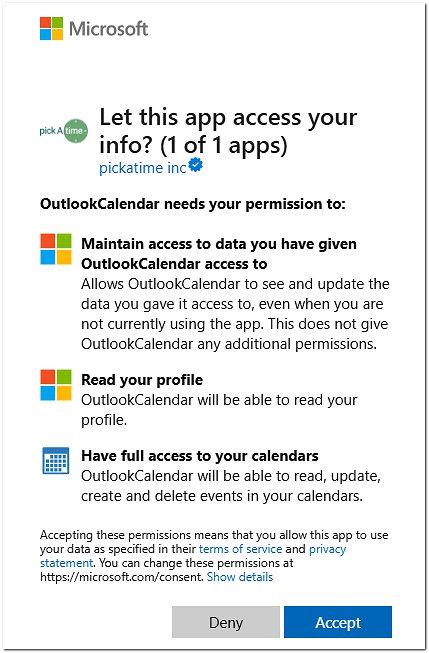
A: Yes, to sync your calendar to utilize the Teams Integration, you have to accept all permissions and select which of the Microsoft Calendars you want to connect to.
Microsoft Outlook Calendar Sync
Setup Steps
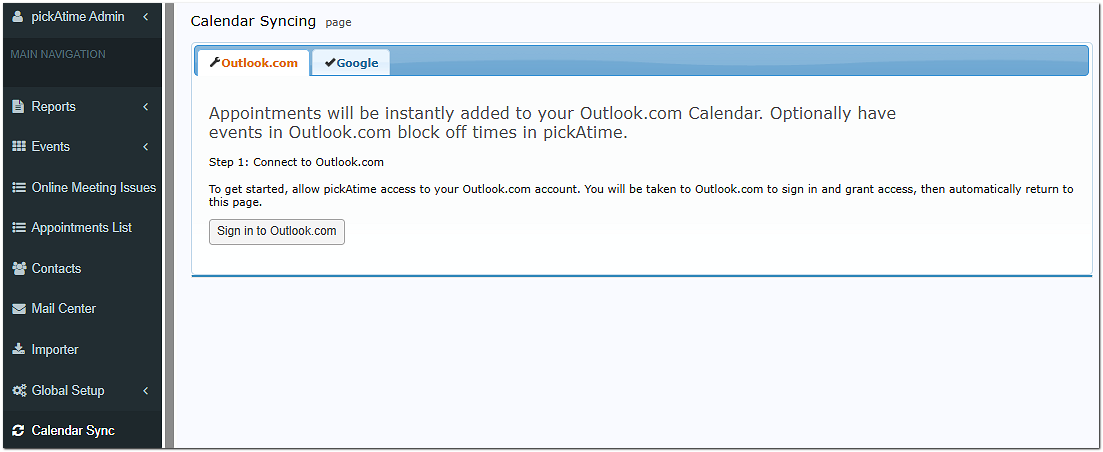
- Sync Calendar with Outlook. Teachers manually sync via the Calendar Sync page in the pickAtime Admin UI. To sync your MS Calendar, do the following:
- Go to the Calendar Sync and click the ‘Sign in to Outlook.com’ button.
- Accept the permissions for Outlook
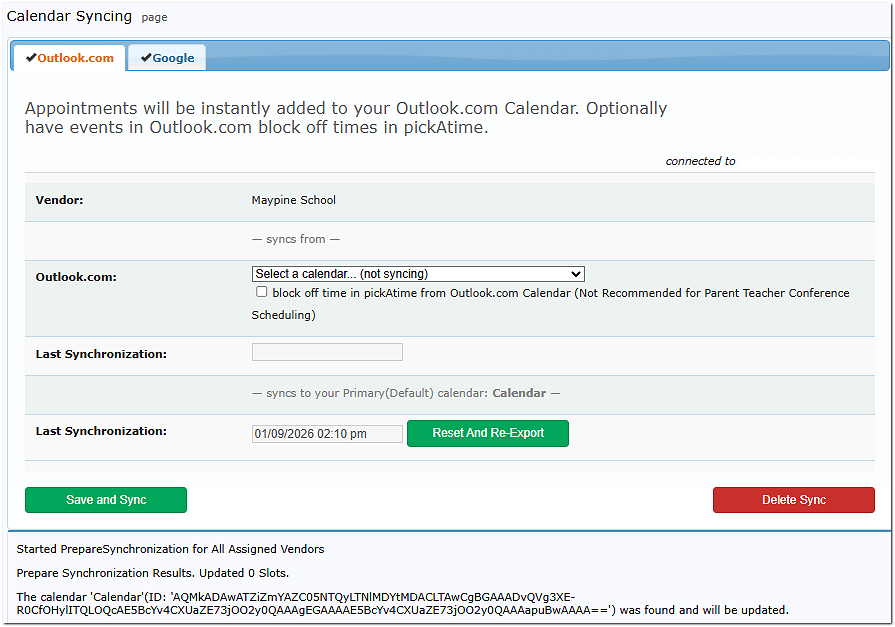
- Select your calendar and click
Frequently Asked Questions
Here are some of the more common FAQ’s:
Q. What is the Reset and Re-Export Button?
A. The "Reset and Re-export" option just means that all appointments will be re-exported to the user's primary calendar. Usually, pickAtime exports new appointments and updates calendar events for appointments that have been changed since the "Last Synchronization" date.
Q. What is the Save and Sync Button?
A. The "Save and sync" option performs two actions: importing events from the selected calendar and exporting appointments to the primary calendar. If the "block off time in pickAtime from Google Calendar" option is enabled, then pickAtime will automatically import events from the selected calendar every 15 minutes.
Q. Why does my appointment time in Outlook Calendar look different than my confirmation email?
This usually happens due to a time zone mismatch.
If an event is created in a different time zone than your local setting, calendar providers like Google or Outlook will automatically adjust the time to match your location. For example, an appointment scheduled for 9:00 AM Central Time will appear as 10:00 AM if your calendar is set to Eastern Time.
If you notice that all appointments for an event are off by an hour, you, as an admin, can fix this by updating the event’s time zone:
-
Log in to the Admin UI
-
Go to Events > Preview
-
Locate your event and check the Time Zone column
-
Select the correct local time zone (e.g., Eastern Time) from the dropdown
To update existing appointments to the correct time zone, do the following in the Admin UI:
Once the time zone is set, the reminder emails (which include a calendar attachment) will reflect the updated time. Calendar entries will automatically sync and display the correct time for users.