Introduction
Welcome
Now that your account is set up, you're ready to build your first scheduler. PickATime offers four scheduling types — choose the one that fits your use case, or reach out and we'll help you decide.
🗓 Parent-Teacher Appointments (PTA) Best for schools with 20+ teachers
Parents log in and see only the teachers their child has a class with — no scrolling through irrelevant names. This is our full-featured conference scheduling product for larger schools.
📹 Watch the PTA Demo | 📖 PTA Setup Guide
🗓 Parent-Teacher Appointments — Simple PTA Best for schools with 20 or fewer teachers
A streamlined version where parents choose from a list of all teachers at the school. Teacher-student relationships don't need to be pre-configured, making setup fast and simple.
📹 Watch the Simple PTA Demo | 📖 Simple PTA Setup Guide
💬 Not sure which PTA product is right for your school? Email us at support@pickatime.com and we'll help.
📅 Event Scheduling Best for one-time or multi-day appointment events
Let participants choose a location, pick a time, and book their slot — all online. Works for events that span a single day or stretch across several weeks.
Common uses: Flu shot sign-ups · Health & wellness screenings · Admission interviews · School tours · Training events
📹 Watch the Event Demo | 📖 Event Scheduling Setup Guide
📋 Roster Scheduling Best for program sign-ups without a specific time slot
Participants register for a program or event rather than booking a particular time. Ideal for recurring programs and ongoing enrollments.
Common uses: Summer camp registration · After-school program sign-ups · Permission slips
📹 Watch the Roster Demo | 📖 Roster Scheduling Setup Guide
Getting Started
To get started with Pickatime, you will first need an account with us. To create an account, select the Sign Up option from our website.
Once you have an account, you will have access to our Admin tool, where you can begin to set up your event.
Follow the steps in the User Guide for the scheduling type you wish to set up:
Parent Teacher Appointments Conference Scheduling
Blackbaud Parent Teacher Appointments Conference Scheduling
Simple Parent Teacher Appointments Conference Scheduling
Product Updates
October 2026 Updates
ADA/WCAG Compliance
- The pickAtime Online Scheduler is now fully ADA/WCAG Complaint.
-
General Standards across the whole app:
-
Unified Page Layouts: All pages across the app (including administrative pages like Add Account) now share the exact same consistent header, body, and footer structure instead of using mismatched one-off styles.
-
Full Keyboard Accessibility: Every button, link, menu, and input can be reached and operated using standard keyboard keys, with a clear 2px outline showing exactly where focus is.
-
Screen Reader Support: Every interactive element has a clear spoken label, while purely decorative icons are hidden so they do not clutter audio output. Live updates (timers, slot reservation notices, loading states, search results) are announced smoothly without interrupting the user.
-
Underlined Links: All text links are now underlined by default so they never rely on color alone to be recognized.
-
Page Titles & Skip Links: Every page now sets a distinct, descriptive browser tab title. We also added a "Skip to Content" link at the top of every page for keyboard users to bypass navigation menus.
-
High Contrast & Reduced Motion: Borders, dividers, and controls adapt seamlessly to Windows High Contrast Mode, and system preferences for reduced motion are respected across all animations.
-
Dedicated Dark Mode Palettes: Tuned primary, accent, and warning color palettes specifically for dark mode so that badges, inactive tabs, buttons, and borders maintain crisp WCAG contrast ratios in both light and dark themes.
-
Change to the Events Preview page
On the Events Preview page, under the Event column we have made the following changes:
- Drag-and-Drop: Admins can reorder events by dragging the handle in the new first column.
- Sorting: Dragging is active when the list is unsorted or sorted by # (ascending). Otherwise, the handles appear disabled, and a tooltip explains how to re-enable dragging.
- Manual Input: Typing an order number directly into the # column still works. The event moves into that slot, and the other events shift accordingly. Numbers higher than the number of events place the event at the end (e.g., entering 21 in a list of 10 positions it at 10).
August 2026 Updates
Website Contact Updates
- PickAtime has replaced the Schedule a Demo and Schedule a Call buttons throughout the site with Contact Us. The previous Contact Us link was also removed from the top navigation.
- PickAtime has updated the Contact Us form and added new fields for Name, Phone, Email, School or Business Name, Request Type, and Additional Questions and Information. To allow for more precise messaging to our support team.
Refund Option Update
The " Make a refund for all paid appointments" option will now appear when deleting slots if On all resources for all events of the same type is selected. This will allow admins to offer mass refunds quickly and cleanly. This option will appear even if the current event has Allow to cancel the paid appointment and get a refund disabled.
Changes to Verbiage on the Tabs and Settings Sections
The Settings Tabs and sections within the tabs have new titles and layout.
UI Setup tab
The UI Setup tab has been renamed to Online Scheduler Settings
This tab has had its sections renamed, and the features for each section have changed.
Events Settings / Events Table Columns
Verbiage changed to: These settings allow you to add/delete unique columns for your events, change their order, and customize their appearance. Administrators have the ability to add new columns, swap columns, and set the appearance of the columns in the Admin UI.
Online Meetings page
Verbiage changed to: This table displays the online meeting sync status for each teacher or resource.
-
Additional verbiage changes were made to assist Admins in understanding features better.
-
Export Setup: Indicates that the teacher or resource has successfully connected their Google Calendar and/or Zoom app with pickAtime.
-
Import Setup: Indicates that their external Google Calendar is currently blocking off unavailable times in pickAtime.
 Important: Blocking availability using an individual resource or teacher's external calendar is not recommended for PTA events.
The resources and their appointments below are missing meeting links. To resolve:
-
Google Meet: Ensure the teacher has synced their Google Calendar
-
Zoom: Review your Zoom settings or our FAQs for Zoom
-
Teams: Ensure the teacher has synced their Microsoft Calendar
-
Vendor View Setup page
This page has been renamed Admin View Settings, and new verbiage changes include:
- “Create contact if not found” changed to: “Create a new contact if the person is not found in the system”
- “Show the service name directly in the Appointments box” changed to: “Show custom appointment fields in the left-hand sidebar”
- “When multiple appointments are in slot, sort by” changed to: “When multiple appointments occur in the same slot, sort by”
- “Draw Time Label Every:” changed to: “Draw Gray Indicator Line Every:”
SIMPLE PTA VUI
The checkbox for Display Class Names on the Settings tab has been removed.
July 2026 Updates
Events
-
pickAtime has removed the "Maximum Allowed Appointments per Resource" setting from the PTA and Simple PTA events.
Reports
- pickAtime added a new "Columns Order" button to all Event Reports, allowing users to customize the order of both default and additional columns.
June 2026 Updates
Captcha
-
pickAtime has replaced Google Captcha with Cloudflare.
Clever
Data Importer
-
pickAtime has implemented the Clever v3.0 API data importer with the ability to switch between the previous v2.0 and the new v3.0 version per request to pickAtime Support.
- The option of importing parent and relationship data, if available in Clever, is also now available.
May 2026 Updates
Blackbaud Updates
Admission Event Importer
-
Added a new Parent Type selector to the Blackbaud Admission Event importer, allowing Admin to select either the Parent of Incoming or Parent of Candidate or both.
Contacts Setup Improvements
-
An addition to Global Setup /Contacts/Advanced Options/Setup Parents Category has been made by replacing the standard text input fields with a multi-select dropdown for event categories.
-
This update applies to:
-
CategoryID for Prospective Parents
-
CategoryID for Current Parents
-
Importer Updates
Slot Import Enhancements
-
Added the ability to define both Slot Type and Appointment Type directly within the Slots Import file.
- SlotTypeID: Controls the visibility of the slot to customers. Accepted values:
- 1 — Visible to Customer (default)
- 2 — Hidden from Customer
- 3 — Shown with Call Status
- 4 — Make Unavailable
- SlotApptTypeID: Specifies the appointment format for the slot. Accepted values:
- 1 — In-Person (default)
- 2 — Virtual
- 3 — In-Person or Virtual
TEMPLATE
| EventID | Resource | Date | StartTime | EndTime | Duration | Max | SlotTypeID | SlotApptTypeID |
|---|---|---|---|---|---|---|---|---|
| 373933 | Health Screenings | 03/18/2025 | 09:00 AM | 12:00 PM | 15 | 1 | 1 | 1 |
| 373937 | Nurse | 03/18/2025 | 01:00 PM | 03:00 PM | 20 | 2 | 1 | 2 |
Resource and Class Removal Updates
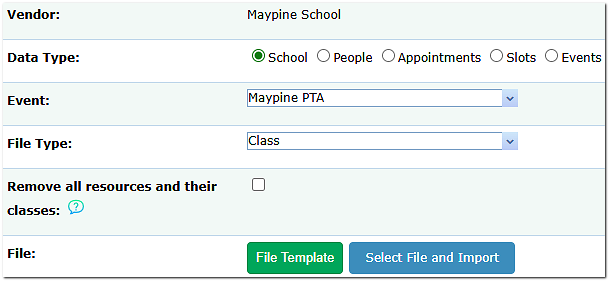
Additional updates were made to the option allowing Admins to delete existing resources, classes, and enrollments directly from the Import page before uploading new data, making it easier to remove bad data without leaving the Importer page. Changes include:
An issue where the Remove all resources and their classes option did not fully remove resources from all scheduling areas has been corrected.
Resources are now correctly removed from:
-
-
Appointments Tab > Teachers
-
ClassEditor Tab > Teachers
-
To locate this feature on the Imports page, click the Class file option within the File Type drop-down menu.
Reporting Updates
Email Report Improvements
Button Label Updates
-
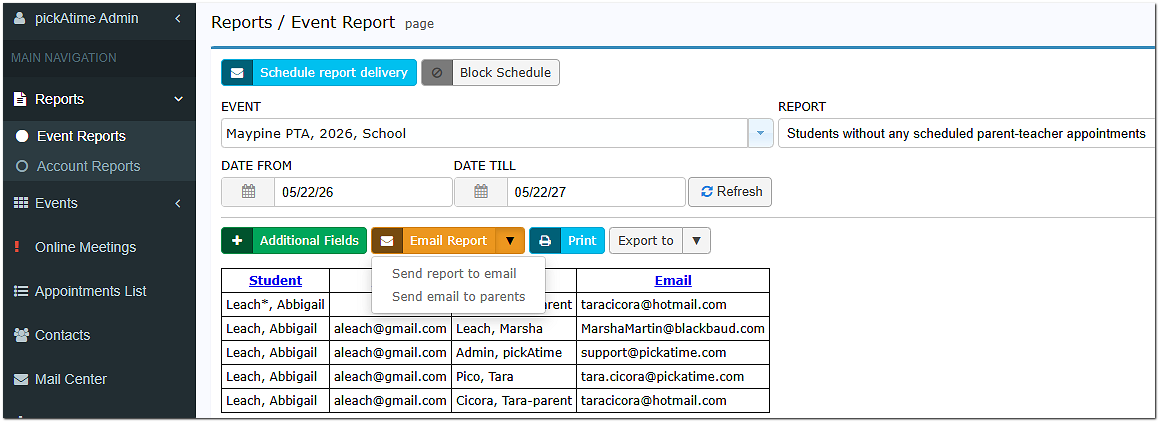
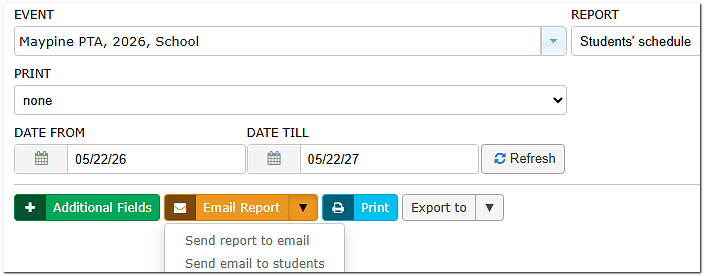
The orange Send email button has been renamed Email Report and now includes multiple email options. Email options include:
- Send to specific email - all reports
- Send Email to Parents - for the following reports:
-
Students without any scheduled parent-teacher appointments
-
Students without any scheduled parent-teacher appointments by class
- Parent Schedule Report
-
- Send Email to Students - for the following report:
- Students’ Schedule
-
The Email Report to Teacher/Parent/Student actions now display a processing message indicating:
-
-
Emails are currently being sent
-
A summary notification will be delivered once processing is complete
-
-
Report Name Updates
Renamed the following reports for improved clarity:
| Previous Name | Updated Name |
|---|---|
| Students whose parents have not booked ANY appointments | Students without any scheduled parent-teacher appointments |
| Students whose parents have not booked appointments PER CLASS | Students without any scheduled parent-teacher appointments by class |
Online Meetings Page Updates
The Online Meeting Issues page has now been renamed to Online Meetings and now acts as your centralized dashboard for overseeing your virtual integrations. At a glance, you’ll be able to track active sync statuses, monitor overall setups, and confirm that your unique appointment meeting links are being generated exactly as they should be.
Click on one of these pages below to see the page for your integration: fgf
SMS Updates
-
Improved SMS phone number formatting to prevent country codes from being accidentally added twice to phone numbers that already include them.
-
Updated the Contact Log to show more detailed text message delivery results, making it easier to identify whether a message was successfully sent or why it failed.
-
Added an automatic “[Replies unmonitored]” message to outgoing text messages so recipients know that replies to system-generated SMS notifications are not monitored.
March 2026 Updates
Log-In & Registration Updates
- The “Do not allow self-registration” option is now automatically disabled when “Show the scheduler to users before they log in” is enabled.
→ This allows participants to create an account seamlessly when they’re ready to book. - New feature: Sign up with Google
→ Participants can now register using Google when:- “Show scheduler before login” is enabled
- “Allow login with external provider” is enabled
- When participants are creating a new account, a second Password (Confirm)" field has been added to the Sign Up form.
Location for Log-Ins and Registrations: Global Setup/ Business/ Registration and Login Settings
Google Updates
- Google Workspace integration will now display “Enabled” only when syncing is error-free
- Automatic email notifications are now disabled when participants create or update Google Calendar events
→ Helps reduce unnecessary email volume
Reporting Updates
- Event Reports now display all teacher team members in the Teachers column
- A new field, “Last Logged In,” has been added within the List of Administrators report.
Location: Reports/ Account Reports/ List of Administrators (click the green “Additional Fields” button)
Events & Scheduling Updates
Class Import Improvements
You can now delete existing resources, classes, and enrollments directly from the Import page before uploading new data, making it easier to remove bad data without leaving the Importer page.
To locate this feature on the Imports page, click the Class file option within the File Type drop-down menu.
Featured Events
pickAtime has added a new option that allows the account Admin to choose to display all events at once or list the "featured" event first, with a search bar for the others. This feature can be activated or deactivated on the Event Settings page, accessible from the Events Preview in the upper-right corner.
Table View Customization
Admins can now set the default view:
-
-
-
-
- Expanded (fixed time steps – classic view, may require more scrolling)
- Condensed (shows variable time steps - may require less scrolling )
- Users can toggle views directly within the scheduler
-
-
-
An update has been made to the Date Field in both the Appointment and Contact Field Setup sections. This update allows you to add 'restrict dates' to control the date range that participants can enter to ensure that there are fewer erroneous entries.
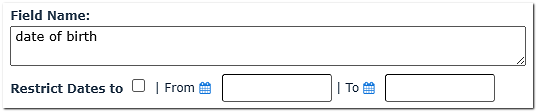
Locations are Global Setup /Contacts/ContactFieldsSetup and EventsManagement/Settings/AppointmentFields
Forced Reminder Emails
-
- Admins can now send reminder emails from the Appointments List even if reminders are disabled for the event
- These are labeled: “Sent Reminder Forced” within the Contact’s log.
January 2026 Updates
- We have changed the name of the Email and SMS Setup page to Notification Setup. On the Notification Setup page, we have added two additional sections. A Resource Notification Email Section and a Calendar Event Notification Section. The Resource Notification section will allow you to have appointment notification emails sent to your resources or teachers. The Calendar Event Notification Section will allow you to customize the calendar reminders.
- We have added an integration with ClassLink.
- We have added an integration with the payment processor Stripe.
- Upcoming: We will be adding an integration with Veracross in the next several months.
General FAQs
Can I pay by Credit Card over the phone?
We do not accept payments by phone. To pay by credit card, please see the instructions below:
-
Select Client Login from our home page (www.pickatime.com) and log in with your email address and password. This must be an administrative email address
-
You will immediately be in the Reports section of the site.
-
Check the circle next to Account View.
-
Then select Account from the Report pull-down.
-
You will then see a list of your invoices and payments.
-
Click on an invoice # to see the details of the invoice. You can pay by credit card using the Stripe checkout option
Can I have a trial of your software to decide if I want to use it?
We do not offer trials. If you have questions or need guidance to see if our software will satisfy your needs, please contact us at support@pickAtime.com
Can I have multiple Administrators? Is there an additional fee for additional Admin?
You can have as many administrators on your account as you wish. There is no additional charge for having additional admins.