Slots File
The Slot File is used to define appointment availability (slots) for an event. Each row represents a time block for a resource (e.g., Nurse, Health Screening). Slots are assigned to a specific event and resource.
If your event does not use time-based appointments (such as a Roster event), this file should not be used.
1 - Create Your Slots File
Required Columns:
- EventID: The ID number for the event. This can be found under Reports / Account Reports /Settings or in the event link under Event Management / Settings / UI Setup / Scheduling Link.
- Resource: Name of the resource (e.g., Nurse, Health Screenings). Must match an existing resource in the event.
- Date: Date for the appointment slots (e.g., 03/04/2025). Format: MM/DD/YYYY.
- StartTime: Start time for the first slot (e.g., 10:00 AM). Format: HH:MM AM/PM.
- EndTime: End time for the last slot (e.g., 11:30 AM). Format: HH:MM AM/PM.
- Duration: Length of each slot in minutes (e.g., 10, 15, 20).
- Max: Maximum number of appointments allowed per slot.
TEMPLATE
|
EventID |
Resource |
Date |
StartTime |
EndTime |
Duration |
Max |
|
373933 |
Health Screenings |
03/18/2025 |
09:00 AM |
12:00 PM |
15 |
1 |
|
373937 |
Nurse |
03/18/2025 |
01:00 PM |
03:00 PM |
20 |
2 |
Key Points
EventID:
- Must match an existing event on your account.
- You can find the EventID in the event's Scheduling Link or under Reports.
Resource:
- Must match the resource name as defined in your event.
- If the resource name does not exist or is misspelled, the import will fail.
Time Format:
- Use 12-hour format with AM/PM for StartTime and EndTime.
- Make sure the duration fits evenly into the total time range.
Max:
- Defines how many appointments can be booked in the same time slot.
- Example: A Max of 2 allows two people to book the same time.
Unsupported Fields:
- Slot Type and Slot Appointment Type are not supported in imports.
- All imported slots will default to:
- Slot Type: Visible to Customers
- Appointment Type: In-Person
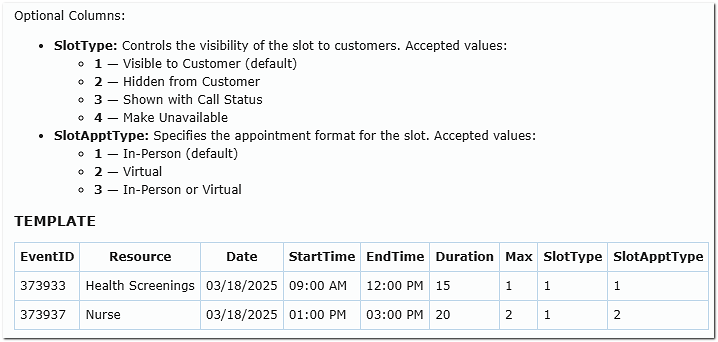
Additional Optional columns:
When importing your Slots file, you can also define both Slot Type and Appointment Type directly within the Slots Import file.
File Format
- File Type: Tab-delimited text file (*.txt or *.tsv).
- First Row: Must contain column headers labeled exactly as listed above
- How to Create:
- In Excel: Save as Text (Tab delimited) (*.txt)
- In Google Sheets: File → Download → Tab-separated values (.tsv)
2 - Import Your File
- Go to pickatime.com and log in from the Login section
- On the left navigation bar, select Importer
- Set the Data Type to Slots.
- Browse your computer and select your prepared tab-delimited file.
- Click Import.
Where to Check Imported Slot Data in the Admin UI
After importing:
- Go to Event Management → Open the Event.
- Click on Time Setup or Schedule Setup.
- Select a Resource and a Date to confirm the slots appear as expected.