Directions for Parents (single event)
Follow the directions provided by your school to access the Parent-Teacher Conference Scheduler.
Step 1: Sign In
Parents access the pickAtime Online Scheduler directly from the Blackbaud Resource Board via a pickAtime tile.
Step 2: Select Your Student(s)
Your student will already be attached to your account.
- Click the student(s) whose schedule you'd like to view.

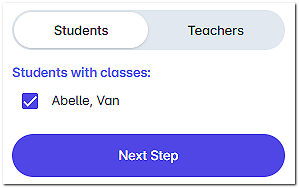
If a student is attached but shows no classes within the event, please contact the event administrator.
Step 3: Select Teachers
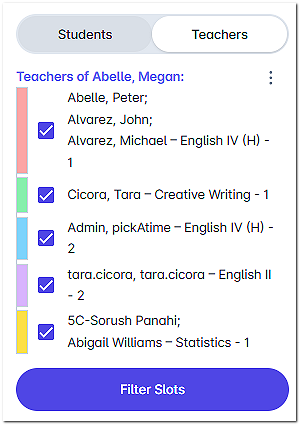
By default, all of your child's teachers are selected.
- To exclude a teacher: Uncheck the box next to their name.
- When ready: Click Filter Slots.

Step 4: Book Appointments
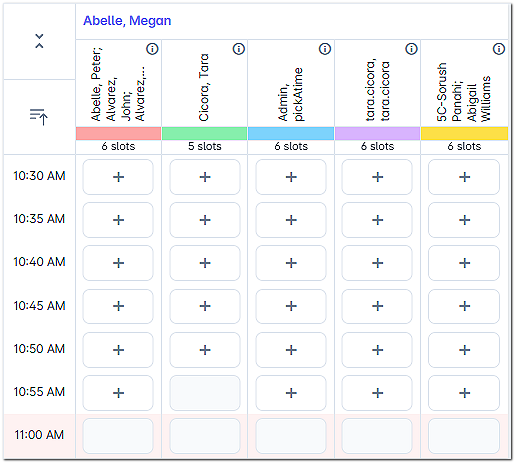
The scheduling grid displays available times as squares with a plus sign (+).
- Click your preferred time square.
- Click Create Appointment.
- A confirmation message will briefly appear at the top of the screen.
- Repeat for each teacher you'd like to visit.

Managing Your Schedule
View or Print Your Schedule
Click Printable Schedule in the left-hand sidebar to see your full itinerary.
Changes & Cancellations
On a computer:
- Click My Appointments in the left-hand sidebar.
- Locate the appointment you'd like to change.
- Hover over the appointment to reveal Details, Edit, and Cancel options.
On a mobile phone: